
A lot of people feel overwhelmed by AI tools because there are too many choices, and most advice assumes you’re working on a computer with lots of time.
This post is for real life: writing emails from your phone—on the bus, between meetings, or while juggling family stuff—using free tools you can start today.
No technical knowledge is needed. Everything here is “install an app” or “type a short request.”
What makes an AI tool “actually useful” for daily work
For email on mobile, the simplest tool is usually the one that reduces steps.
A mobile AI tool is actually useful when it is:
- Easy to use: A clean app, or it works inside your keyboard so you don’t switch apps.
- Free or has a meaningful free tier: You can use it enough to matter, not just once.
- Solves a real problem: Drafting a message, improving tone, fixing typos fast.
- Saves time or reduces effort: Fewer rewrites, less overthinking, quicker “send.”
In plain terms: the best mobile AI for email is the one you’ll actually remember to open.
3. List of free AI tools (5–7 tools maximum)
1) Microsoft Copilot (Free) — simplest if you like voice + quick drafts
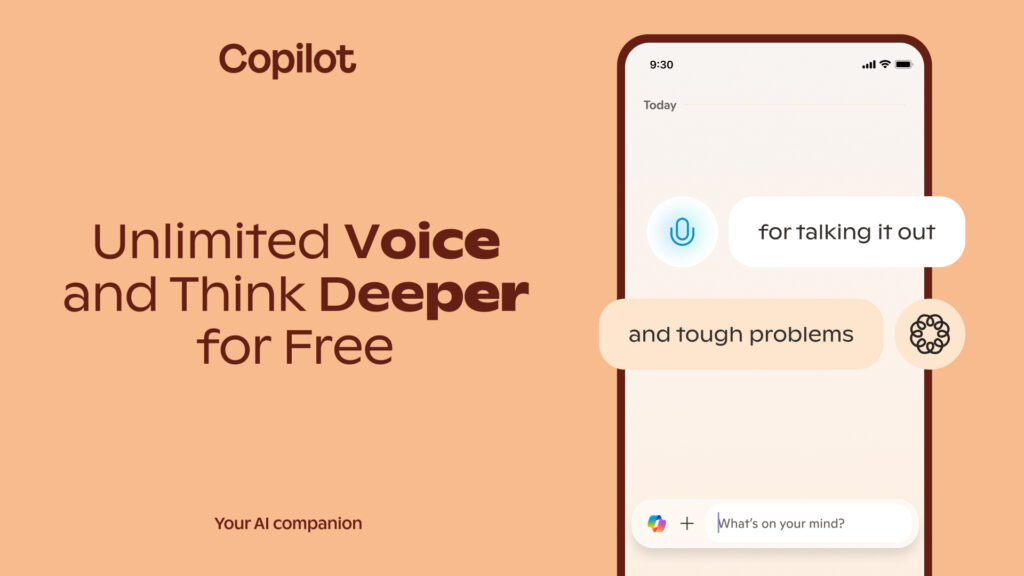
What it does (simple language): A chat app that helps you draft and rewrite emails; you can talk to it instead of typing.
What everyday problem it solves:
- Writing an email when you only have one hand free
- Getting a quick first draft you can paste into Gmail/Outlook
One realistic example:
You say: “Write a short email to my kid’s teacher asking for tomorrow’s homework. Friendly tone. 4 sentences.” then paste it into your email app.
Limitations of the free version (be honest):
- Copilot’s Voice and “Think Deeper” are free and described by Microsoft as unlimited, but you still need internet and you may notice occasional slowdowns.
- It’s usually copy/paste into your email app rather than a perfect “inside Gmail/Outlook” button.
2) ChatGPT (Free) — simplest “type this, get an email” tool
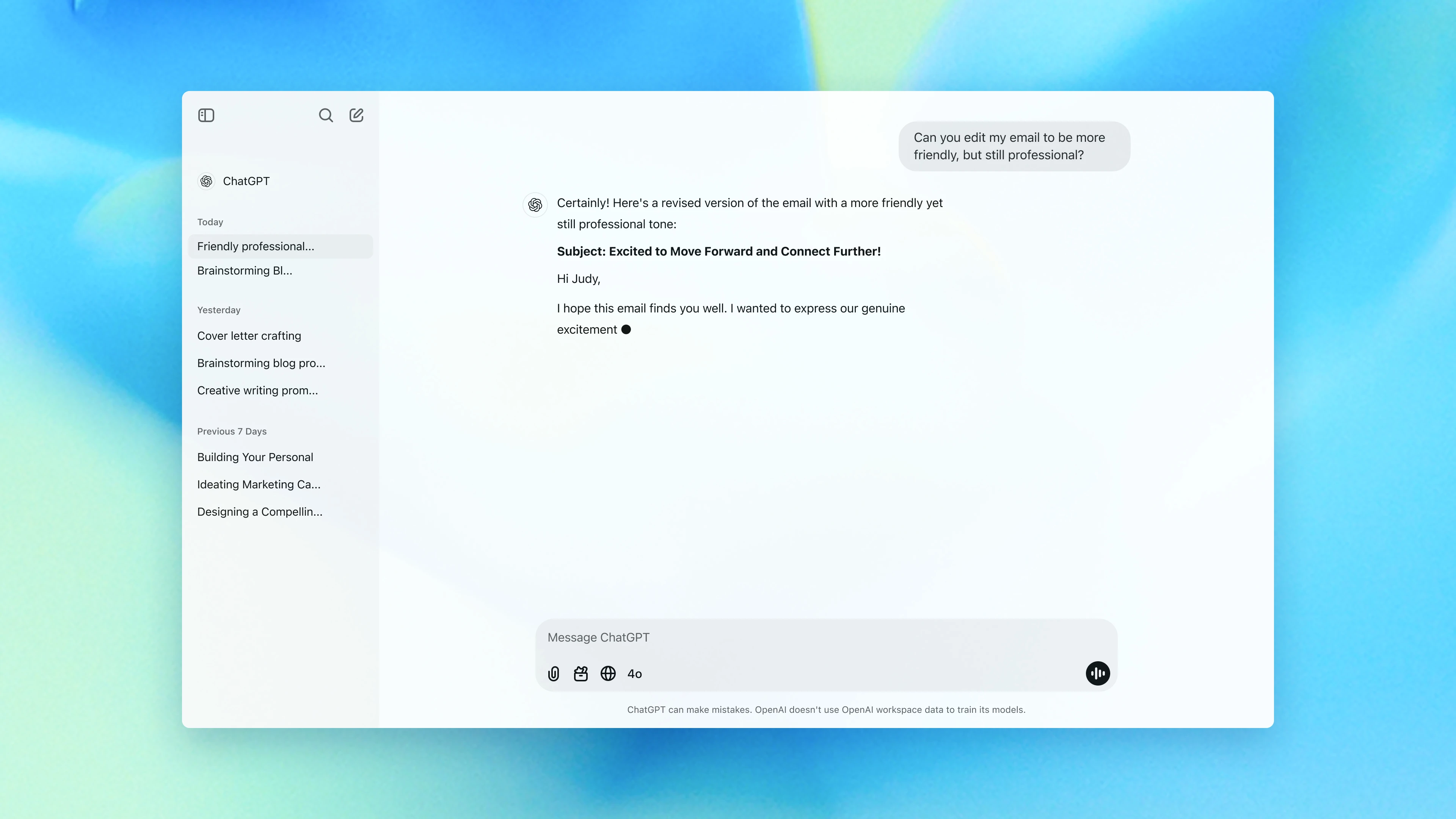
What it does (simple language): You type what you need (or paste notes), and it drafts an email you can copy into your mail app.
What everyday problem it solves:
- Starting emails faster
- Rewriting to sound more polite, clearer, or shorter
One realistic example:
You paste your messy draft and ask: “Rewrite this in a calm tone, under 120 words, and include a clear next step.”
Limitations of the free version (be honest):
- Free accounts have usage limits, so heavy use can hit a cap until it resets.
- Like any AI, it can make mistakes, so don’t blindly trust dates, policy details, or numbers.
3) Grammarly Keyboard (Free) — simplest because it works where you type
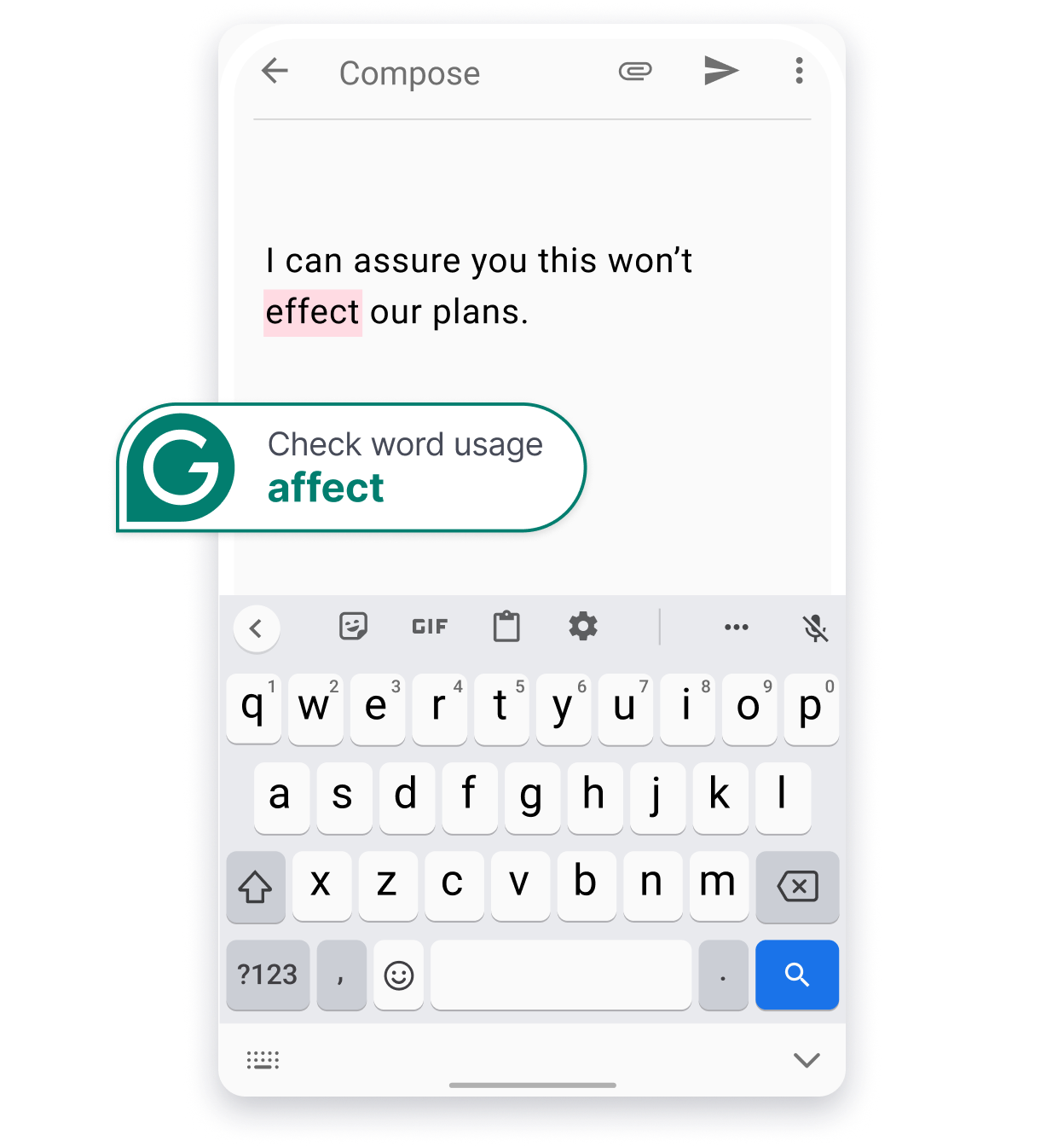
What it does (simple language): A keyboard you install on your phone that checks spelling/grammar and helps rewrite text while you type in any app.
What everyday problem it solves:
- Fixing typos and awkward sentences in Gmail/Outlook without switching apps
- Writing more clearly when you’re in a hurry
One realistic example:
You write an email in the Gmail app and Grammarly suggestions appear as you type, helping you fix mistakes before sending.
Limitations of the free version (be honest):
- Some advanced rewrite options may be limited unless you pay.
- You’re using a third-party keyboard, so it’s worth being mindful about what you type (especially passwords or sensitive info).
4) Gmail and Outlook built-in tools (fast, but not always “AI drafting”)
What it does (simple language): Your mail app already helps with basic things like autocorrect, suggested words, and quick replies (depending on your device/settings).
What everyday problem it solves:
- Sending short replies quickly without installing anything new
One realistic example:
You use a suggested reply like “Sounds good—thanks!” and edit it slightly.
Limitations of the free version (be honest):
- These features are basic and won’t create a full email from scratch like a chat AI can.
- Options vary by phone, app version, and account type.
5) Perplexity (Free) — simplest for “what do I say?” + quick fact checks

What it does (simple language): Helps you research with sources, so you can feel confident before emailing about something important.
What everyday problem it solves:
- Writing emails that need correct info (rules, definitions, quick comparisons)
- Avoiding random “internet facts” you can’t verify
One realistic example:
Before emailing a school/landlord/insurance company, you look up a key detail and then write a clearer request.
Limitations of the free version (be honest):
- Free accounts can have limits on advanced/deeper searches.
- It’s more about information than drafting, so you may still use another tool to write the final email.
How to choose the right AI tool for your needs
Not everyone needs all of these. The simplest choice depends on your email habits:
- If you want the fewest steps and hate switching apps:
- Try Grammarly Keyboard.
- If you want “draft the whole email for me” with minimal effort:
- Try ChatGPT Free.
- If typing is annoying on mobile and you want to speak your request:
- Try Microsoft Copilot (voice).
- If you mostly write short replies and don’t want new tools:
- Use your email app’s built-in suggestions and keep it simple.
A helpful rule: choose the tool that matches your biggest friction (typing, tone, typos, or speed).
5. Common mistakes people make when using free AI tools
- Trying too many tools at once: It becomes stressful and you stop using all of them.
- Expecting perfect results: Mobile AI is best for first drafts and quick fixes, not perfection.
- Not giving clear input: Tell it the tone (polite/friendly/firm) and the length (3 sentences / under 120 words).
- Giving up too quickly: One follow-up like “shorter” or “more polite” usually improves the draft a lot.
6. Free vs paid AI tools (high-level, non-salesy)
Free is enough when:
- You write a few emails a day and mainly need drafts, rewrites, or typo fixes.
Upgrading might make sense when:
- You hit free usage limits often (common with chat-based tools).
- You want more advanced rewriting and tone controls in a writing assistant.
Starting free is the right move. You’ll quickly learn whether the tool actually fits your day.
7. Final takeaway
If “simplest” means the fewest steps while emailing on your phone, Grammarly Keyboard is often the easiest because it works right where you type.
If “simplest” means “generate a full email fast,” ChatGPT Free is usually the easiest starting point, with the tradeoff of usage limits.
Try one tool for one week, for one type of email (work, school, customer messages), and keep only what genuinely makes emailing easier.




&media=https://usebetterai.com/storage/cover-images/2.jpg)